
In today’s digital age, finding the right streaming solution can be overwhelming. I choose the Kodi IPTV addon because it offers an unparalleled combination of customization, reliability, and access to a vast range of live channels and on-demand content. This powerful platform has transformed my viewing habits, allowing me to consolidate all my entertainment into one user-friendly interface.
After years of frustration with traditional cable and fragmented streaming services, I discovered the remarkable capabilities of this addon. It allows me to stream live TV from around the globe in multiple languages, making it stand out from other options I’ve tried. My journey with this platform has been rewarding, and I am excited to share my insights with you.
Throughout this article, I will highlight key benefits such as extensive channel variety, easy navigation, and robust privacy protections. As a tech writer with global experience, I bring firsthand knowledge of nearly every IPTV service available. My goal is to guide you through the process of installing, configuring, and optimizing your own streaming experience with the Kodi IPTV addon.
While this platform is often recognized for its on-demand movies and shows, its live TV capabilities truly showcase its potential. Join me as I explore how you can transform your streaming experience with this powerful tool.
Key Takeaways
- The Kodi IPTV addon consolidates entertainment into one interface.
- It offers a wide variety of live channels from around the world.
- Users can enjoy content in multiple languages.
- The platform provides robust privacy protections.
- Installation and configuration are straightforward.
What is Kodi and IPTV?
Delving into the world of streaming begins with understanding what Kodi and IPTV bring to the table. Both have transformed how we consume media, offering a wealth of options for viewers around the globe.
Origins and Evolution of Kodi
Kodi was originally launched in 2002 as Xbox Media Center (XBMC). It started as a media management tool specifically for the Xbox gaming console. However, Microsoft never officially approved the software, prompting developers to expand its capabilities.
Today, Kodi is a versatile, free, and open-source software (FOSS) that runs on nearly every operating system and device, except for gaming consoles. Its adaptability has allowed it to function on Smart TVs, hotel TV systems, and digital signage.
Understanding Internet Protocol Television (IPTV)
Internet Protocol Television (IPTV) is a method of delivering television content over internet protocol networks. Unlike traditional broadcast methods, IPTV streams content directly to users via set-top boxes and internet-based platforms.
This technology allows users to access a vast array of channels from around the world, catering to diverse language preferences. However, the reliability of IPTV can vary significantly based on the service provider.
How IPTV Enhances Live TV Streaming
IPTV enhances live TV streaming by providing an extensive selection of channels in a single interface. This capability is particularly beneficial for users who want access to international content.
While some IPTV services may struggle with reliability, the open-source architecture of Kodi’s addon ecosystem offers multiple sources and customizable configurations. This flexibility allows users to tailor their streaming experience according to their preferences.
In summary, the combination of Kodi’s powerful media management system and IPTV technology creates a unified entertainment hub that no single commercial service can replicate. My journey with this platform has shown me just how transformative the right IPTV addon can be for daily viewing.
| Feature | Kodi | IPTV |
|---|---|---|
| Type | Media Player | Content Delivery |
| Flexibility | High (supports addons) | Variable (depends on provider) |
| Device Compatibility | Multiple (Smart TVs, PCs, etc.) | Set-top boxes, Smart TVs |
| Content Variety | Movies, shows, live TV | Live TV channels, on-demand |
| Cost | Free | Varies by service |

Why Choose the Kodi IPTV Addon?
Navigating the vast sea of streaming options can be quite challenging. Over the years, I have explored numerous services, from premium subscriptions to free platforms. None of them provided the complete package I needed. Each service came with its own set of frustrations.
Conventional streaming options often left me feeling restricted. Geographic limitations, limited channel lineups, and the constant need to switch between multiple apps were common issues. The Kodi IPTV addon emerged as a solution that outperforms all others in terms of customization, reliability, and the sheer breadth of available channels and content.
My Experience with Different Streaming Services
My journey with various streaming services has taught me a lot. I have encountered countless challenges, and each experience shaped my expectations. I quickly realized that many services fell short in delivering quality content and user satisfaction.
Customization and Reliability Advantages
One of the standout features of the Kodi IPTV addon is its customization capabilities. I can tailor every aspect of my viewing experience, from channel organization to interface appearance. This level of personalization is something I couldn’t find in other services.
Moreover, while IPTV can sometimes be unstable, the flexibility of Kodi’s addon ecosystem provides multiple source options. This significantly minimizes interruptions, ensuring that I can enjoy my shows and movies without frustrating delays.
Access to a Vast Range of Channels and Content
Through a single addon, I now access a vast array of channels and content. This includes news, sports, entertainment, and international programming from dozens of countries. The variety is simply unmatched.
When selecting an IPTV addon, I focus on stream quality, channel variety, content diversity, and overall ease of use. The Kodi IPTV addon consistently meets my criteria, making it the superior choice for anyone serious about streaming.
In conclusion, the combination of customization, reliability, and extensive content access makes choosing the Kodi IPTV addon the most logical decision for any serious streamer. It offers a unified, streamlined approach that eliminates the fragmented experience of juggling multiple services.
Key Features that Transformed My Streaming Experience
The evolution of streaming has introduced a myriad of features that can significantly enhance the viewing experience. The key features that transformed my streaming journey include extensive channel and language options, a user-friendly interface, and comprehensive on-demand content alongside live sports coverage.
Extensive Channel and Language Options
One of the first aspects that drew me to the Kodi IPTV addon was its extensive channel and language options. With access to tens of thousands of channels from the USA, UK, Canada, Germany, Japan, Korea, and beyond, I found a treasure trove of content.
Popular channels like HBO, CBS, Sky, Comedy Central, AMC, Discovery Channel, History Channel, and ESPN are just a few examples of what I can watch. This variety ensures that I can always find something engaging, no matter my mood.
User-Friendly Interface and Menu Navigation
The user-friendly layout and intuitive menu navigation have made browsing through the massive channel libraries effortless. The search options allow me to filter channels by language and genre, making it easy to find exactly what I want.
I often explore categories such as News, Sports, Family, Documentary, Lifestyle, Movies, and Music. This logical organization of content simplifies my viewing experience, allowing me to focus on enjoying my favorite shows.
On-Demand Content and Live Sports
The addon’s on-demand content library perfectly complements live TV. I can access a wide variety of shows and movies whenever I want. This flexibility has changed how I approach my viewing habits.
Live sports coverage has also transformed my experience. With dedicated sections for ESPN, Fox Sports, and international sporting events, I can follow my favorite teams and leagues without missing a beat.
Moreover, the multi-language support sets this service apart. Channels are available in Italian, French, German, Spanish, Portuguese, Russian, Turkish, Romanian, Greek, and Polish, catering to a diverse audience.
In conclusion, the combination of live streams, on-demand content, and sports coverage in a single interface has eliminated my need for multiple separate services. The quality and consistency of streams through well-maintained addons have made my viewing experience dramatically more reliable than previous attempts. These key features collectively represent a streaming experience that no single commercial service can replicate.

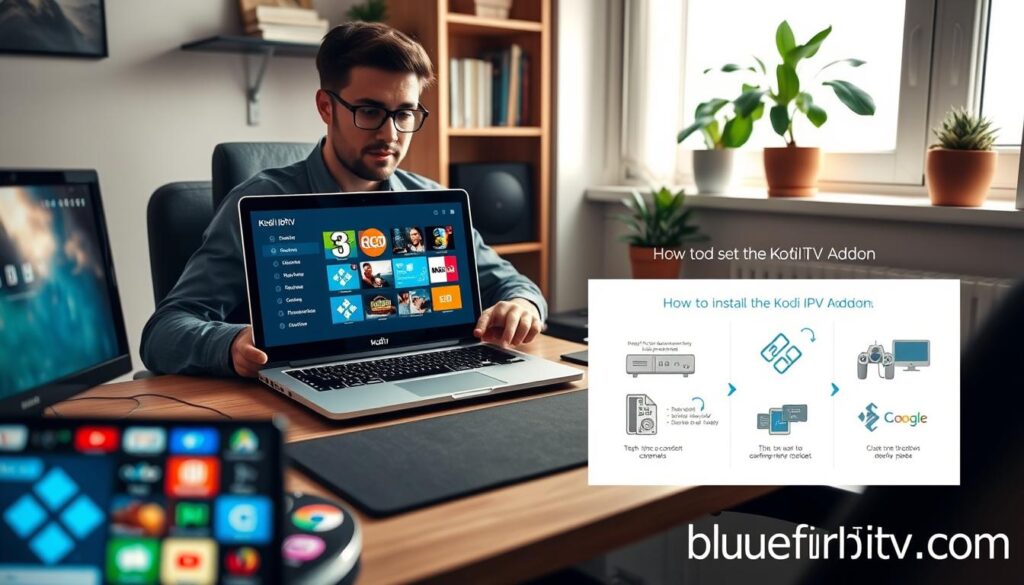
How to Install and Set Up Kodi IPTV Addon
Installing a new streaming solution doesn’t have to be a complicated journey. With the right guidance, you can quickly set up the Kodi IPTV addon and start enjoying a world of content. This process is straightforward and can be refined through experience.
First, ensure that you have the correct version of Kodi. The IPTV features I rely on require Kodi Leia (18) version or above for full compatibility. Once you have the right version, you can begin the installation process.
Installing Kodi and Setting Up IPTV Addons
To install the IPTV Manager addon, navigate to the settings menu. Go to the “TV Integration” section and select “Install IPTV Manager add-on.” This step is crucial as it allows you to take full advantage of the TV guide managed by Kodi.
After installation, you will need to enable channels. Navigate back to the “TV Integration” section and choose “Select channels to enable.” This is where you can save your configuration to activate the desired content.
Enabling Channels and Configuring Settings
If channels do not appear immediately, don’t worry. You can troubleshoot by going to the IPTV Manager settings. Select “IPTV Simple” and then “Configure IPTV Simple automatically.” After that, go to “Channels” and choose “Refresh channels and guide now.” This will help populate your channel list.
Using Addons Like IPTV Manager and PVR IPTV Simple Client
The PVR IPTV Simple Client is essential for adding IPTV playlists to Kodi. You will need to add an M3U playlist link to the IPTV Simple Client to ensure it populates your TV channels correctly. This link is vital for accessing streams effectively.
With this setup, you gain access to the TV guide managed by Kodi, allowing you to organize channels into custom groups. This feature enhances your viewing experience, making it easier to find your favorite shows and movies.
Additionally, I recommend configuring settings to optimize stream quality. This includes managing buffering and ensuring reliable connections to your preferred content sources. While the initial setup requires some time and attention to detail, the resulting system delivers a streaming experience well worth the effort.
Popular Kodi IPTV Addons I Recommend
With countless streaming options available, it’s essential to know which Kodi IPTV addons stand out. Based on my extensive testing, I recommend several addons that provide excellent content and a user-friendly experience. These addons cater to a wide range of viewing preferences and ensure high-quality streams.
cCloud TV: A Comprehensive Channel Library
cCloud TV is the addon that sets the bar high for IPTV on Kodi. It boasts tens of thousands of channels from around the world, including the USA, UK, Canada, Germany, Japan, and Korea. Popular channels available through cCloud TV include:
- HBO
- CBS
- Sky
- Comedy Central
- AMC
- Discovery Channel
- History Channel
- ESPN
This addon offers a user-friendly layout with search options by language and genre, making it easy to find your favorite shows and movies.
Goodfellas 2.0: Sports and British/American TV Focus
Goodfellas 2.0 has made a comeback after a crackdown, and it provides solid and consistent stream quality. This addon excels in live sports coverage and features a great selection of US and British TV channels, including:
- SyFy
- HGTV
- ESPN
- HBO
- Sky channels
- BBC
- ITV
Additionally, Goodfellas 2.0 includes a comprehensive on-demand service for shows and movies, along with a unique section for viewing live CCTV camera footage from around the world.
Kodi Live TV and Made in Canada IPTV
Kodi Live TV is a fantastic option for users seeking non-English content. It offers hundreds of channels in languages such as Italian, French, German, Spanish, Portuguese, Russian, Turkish, Romanian, Greek, and Polish. On the other hand, Made in Canada IPTV deserves a spot on my list for its excellent coverage of Canadian, USA, and UK channels, particularly in live sports, including ESPN and Fox Sports.
Official Addons Like BBC iPlayer and Subscription Services
For those interested in official content, BBC iPlayer is a standout option. However, it requires a UK IP address and a TV license to access all BBC channels live and free. Other subscription-based options available through the SlyGuy Repository include:
- Samsung TV Plus
- Plex Live
- Roku
- Paramount+
- Hulu
- Disney Plus
These services integrate seamlessly with Kodi, providing users with a rich array of content.
Each addon on my list has been personally tested and evaluated based on stream quality, channel variety, content diversity, language options, and overall ease of use. I encourage users to select addons based on their specific viewing preferences, as the diversity of options ensures there is a perfect Kodi IPTV solution for every type of viewer.

Enhancing Privacy and Security with VPN
When it comes to streaming, ensuring your privacy and security is crucial. The digital landscape can be fraught with risks, especially when using streaming services. I always connect through a VPN to enhance my privacy and security while using the Kodi IPTV addon. My top recommendation is IPVanish, known for its speed, encryption, and ease of use.
Using a VPN is essential when streaming through Kodi IPTV addons. It protects against surveillance, hackers, and man-in-the-middle attacks that target unencrypted connections. A VPN works by redirecting all internet traffic down an encrypted tunnel to an external server. This ensures that no data is visible to government surveillance officers or unscrupulous hackers.
Here are some key benefits of using IPVanish:
- Great connection speeds: IPVanish ensures smooth streaming without interruptions.
- 256-bit encryption: This level of encryption keeps your data secure.
- No-logging policy: Your online activities remain private and confidential.
- Global server locations: With many servers worldwide, you can access content from different regions.
IPVanish also has a dedicated app for the Amazon Fire TV Stick, simplifying the setup process. This is particularly useful for many Kodi users. The VPN’s IP address masking allows me to bypass geo-restrictions on content, making services like BBC iPlayer accessible regardless of my physical location.
Additionally, the VPN renders me completely anonymous online, preventing my ISP from seeing which sites and services I am accessing. IPVanish offers a 63% discount on yearly plans at just $3.99 per month, along with a seven-day money-back guarantee for a risk-free trial.
Setting up a VPN on your streaming device is straightforward and takes only a few minutes. Here’s a quick guide:
- Download the IPVanish app on your device.
- Open the app and log in with your credentials.
- Select a server location and connect.
- Start streaming securely!
With the heightened risks associated with IPTV addons that constantly download content from the internet, a VPN is not optional but essential for safe streaming. The small monthly investment in a quality VPN like IPVanish is the single most important step any user can take to protect their privacy and enhance their streaming experience.
Understanding the Legal and Safety Aspects of Kodi IPTV
Understanding the implications of using streaming services is vital for any user. The legal and safety aspects of these platforms can be complex, especially when it comes to accessing various types of content. It’s essential to navigate these waters carefully to ensure a safe and enjoyable experience.
The core software is 100% legal to download and use. Developers of this software have made significant efforts to maintain transparency regarding their legal compliance. However, the challenge arises with third-party addons. While many developers are trustworthy, others may create addons that facilitate illegal activities.
Legality of Kodi and Its Addons
While downloading copyrighted content is illegal in many regions, the legality of streaming remains a gray area. In the USA and EU, streaming is often classified as legal, as copyrighted content exists on a user’s device for only a brief period. However, users must ensure they only access content they are legally entitled to.
Risks Associated with Unofficial Addons
Unofficial addons can pose significant risks. Rogue developers may use popular addons to introduce malware onto devices. For users relying on IPTV addons that constantly download content, the risk of man-in-the-middle attacks increases. This can lead to data breaches and unauthorized access to personal information.
Protecting Yourself While Streaming
To mitigate these risks, I take several protective measures while streaming. Always using a VPN is crucial. This tool encrypts data and hides my identity, significantly reducing liability and security risks. With the rise of legal actions against users accessing copyrighted content, being proactive is essential.
Many popular addons have been shut down due to copyright issues, and some users have received legal notices. Therefore, while the official software is safe, the unregulated nature of external addons means users must exercise caution. I recommend identifying trustworthy addons and avoiding those that may pose legal or security risks.
In conclusion, protecting oneself while streaming is not just about legality. It’s about ensuring a high-quality entertainment experience free from malware and interruptions. For more information on legal aspects, check out this guide.
| Aspect | Details |
|---|---|
| Legal Status | Core software is legal; third-party addons may vary. |
| Streaming Legality | Often legal in the USA and EU, but users must verify content rights. |
| Risks | Malware from unofficial addons; man-in-the-middle attacks. |
| Protection | Use a VPN to encrypt data and hide identity. |
| Best Practices | Choose trustworthy addons and avoid risky ones. |
Tips for Optimizing Your Streaming Experience on Kodi
Enhancing your streaming experience on Kodi is an ongoing journey. By focusing on reliable IPTV sources, maintaining stream quality, and utilizing recording features, you can create a setup that truly meets your needs. Here’s how I approach these aspects to ensure a seamless viewing experience.
Choosing Reliable IPTV Sources and Addons
When selecting IPTV sources and addons, I emphasize a few key criteria. First, I look for stream quality and reliability. Addons with consistent performance are crucial for uninterrupted viewing. Additionally, I assess the number of channels and the variety of content available.
Language options also play a significant role in my decision-making process. The broader the range of languages, the more inclusive the experience becomes. Overall ease of use is essential; I prefer addons that are user-friendly and straightforward to navigate.
Maintaining Stream Quality and Reducing Interruptions
To maintain high stream quality, I select addons known for their reliable performance. I also configure buffer settings according to my internet connection speed. This helps reduce interruptions during playback, allowing for a smoother viewing experience.
For example, I use the Jet TV Guide addon from the Magnetic Repository. This addon not only provides EPG functionality but also manages sporting events and recording capabilities. Its intuitive interface helps me keep track of my favorite shows and sports.
Recording Live TV and Managing Content
For recording live TV, I rely on the IPTV Recorder addon. Since the PVR IPTV Simple Client does not offer native recording functionality, the IPTV Recorder fills that gap effectively. To get started, I first install the addon from the primaeval repository.
Before using the IPTV Recorder, ensure that FFMPEG is installed on your operating system and that the m3u file is configured in PVR IPTV Simple. This setup allows for efficient recording of live content.
However, there are some limitations to be aware of. The IPTV Recorder cannot block standby mode during recordings, nor can it wake Kodi for scheduled recordings. Additionally, it cannot record DRM-protected live TV content. The default recording path is set to special://temp, which can be added to Kodi’s video sources for easy access.
To manage recorded content, I recommend organizing channels into groups and customizing the menu system. This creates a streamlined interface that makes finding content quick and intuitive.
In conclusion, optimizing your streaming experience on Kodi is a continuous process. By carefully choosing reliable sources, maintaining stream quality, and utilizing recording features, you can enjoy a setup that rivals any commercial television service.
| Aspect | Details |
|---|---|
| Reliable Sources | Choose addons based on stream quality and content variety. |
| Stream Quality | Configure buffer settings for optimal performance. |
| Recording | Use IPTV Recorder with FFMPEG for live TV recording. |
| Limitations | Cannot record DRM-protected content or wake Kodi for recordings. |
| Content Management | Organize channels and customize the menu for easy access. |
Conclusion
In conclusion, I choose the Kodi IPTV addon for my streaming needs because it delivers an unmatched combination of variety, customization, reliability, and value that no other platform can offer. Kodi stands out as the most versatile and user-friendly media player available, functioning on nearly every operating system and device.
While it is well-known for on-demand movies and shows, the ability to stream live TV through IPTV truly showcases its potential. The open-source nature of this software allows for continuous innovation from third-party developers, expanding the platform’s capabilities.
It’s essential to protect your privacy with a VPN like IPVanish, ensuring a safe streaming experience. I encourage you to apply the installation guides, addon recommendations, and optimization tips shared in this article to build your perfect setup.
As the landscape of available addons changes, the principles of choosing reliable sources and maintaining quality settings remain constant. My experience has shown that the Kodi IPTV addon represents the pinnacle of streaming television. Start your journey today, and explore the world of entertainment that awaits you!
